6. HDRI Image

1.
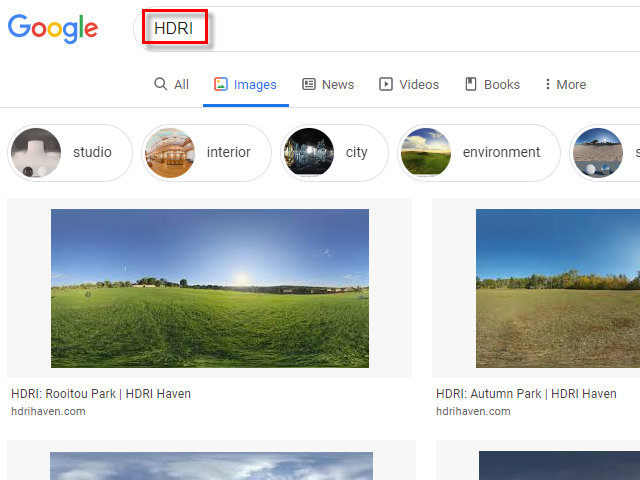
Search HDRI. ( High-dynamic-range imaging )
High-dynamic-range imaging is a technique used in photographic imaging and films, and in ray-traced computer-generated imaging, to reproduce a greater range of luminosity than what is possible with standard digital imaging or photographic techniques. Wikipedia
HDRI で検索すると、このような画像が表示されます。
この画像は特殊な画像で、バックグラウンドに使用すると、その画像から光が放出されます。
2.
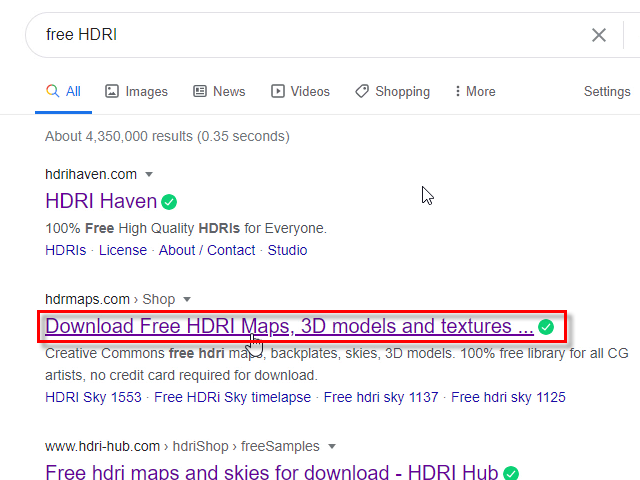
Find free HDRI.
HDRI の無料版を検索します。
3.
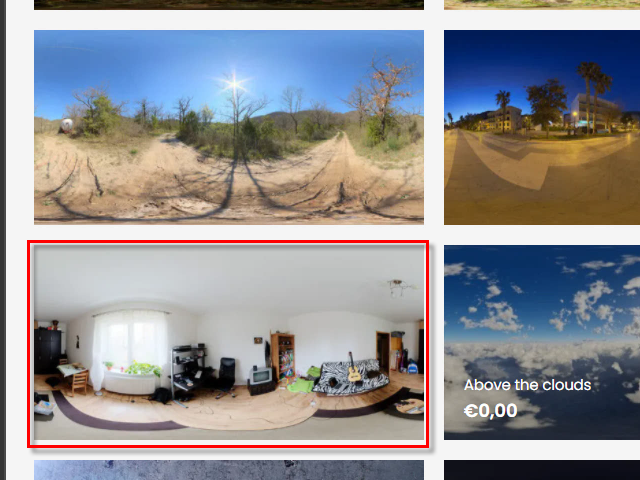
Select an interior image.
屋内の画像を使用してみます。
● Download HDR(EXR)
HDRI(EXR) をダウンロード
4.
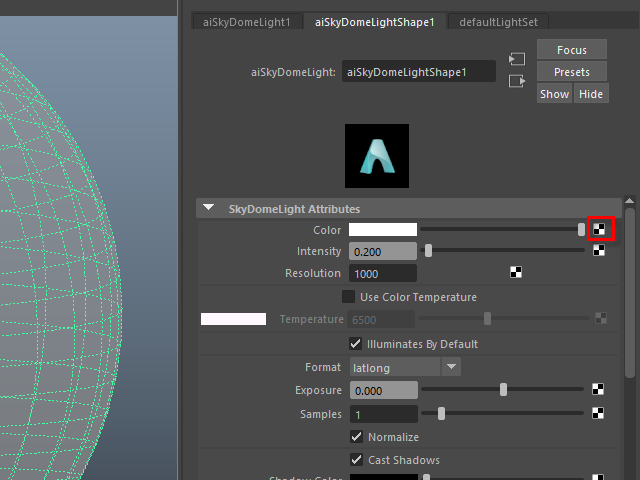
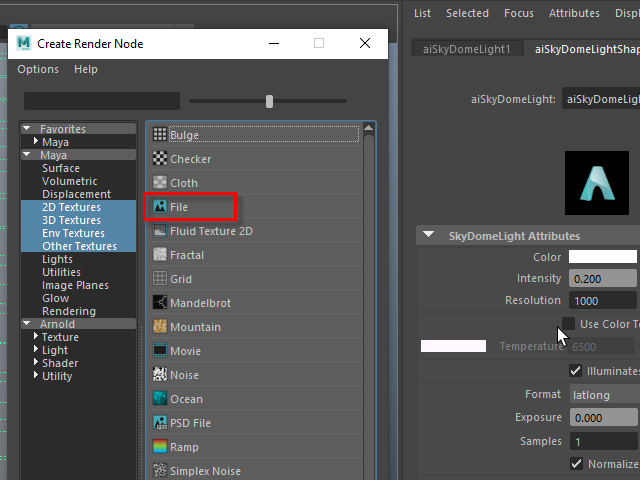
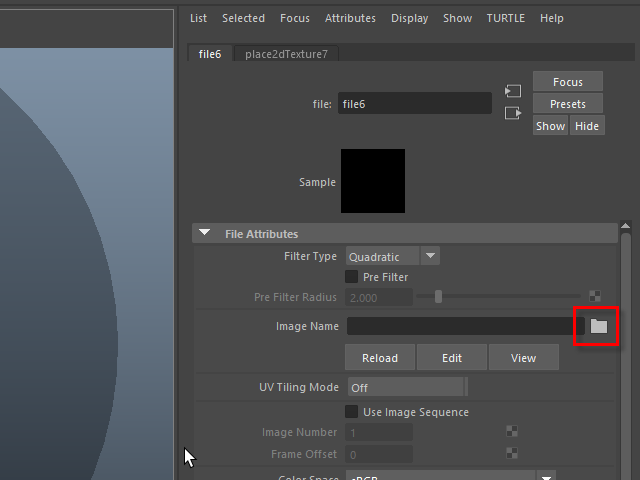
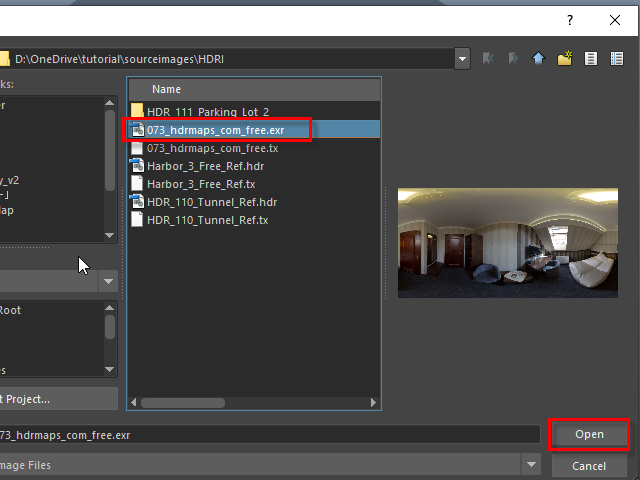
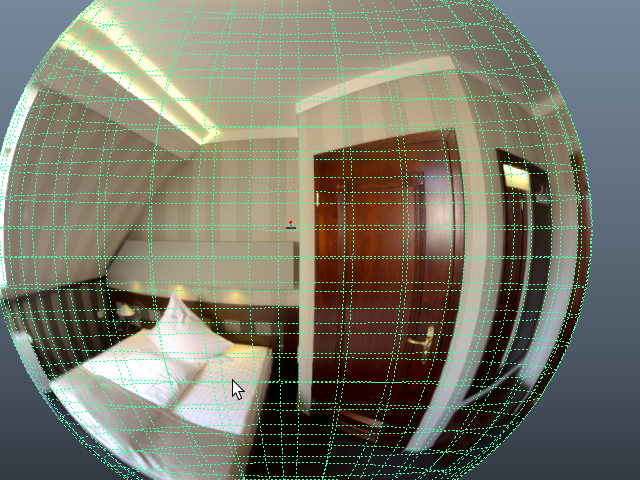
I am going to apply the HDR image on the Skydome Light.
HDR 画像をSkydome Light に張り付けてみます。
5.
6.
7.
8.
9.
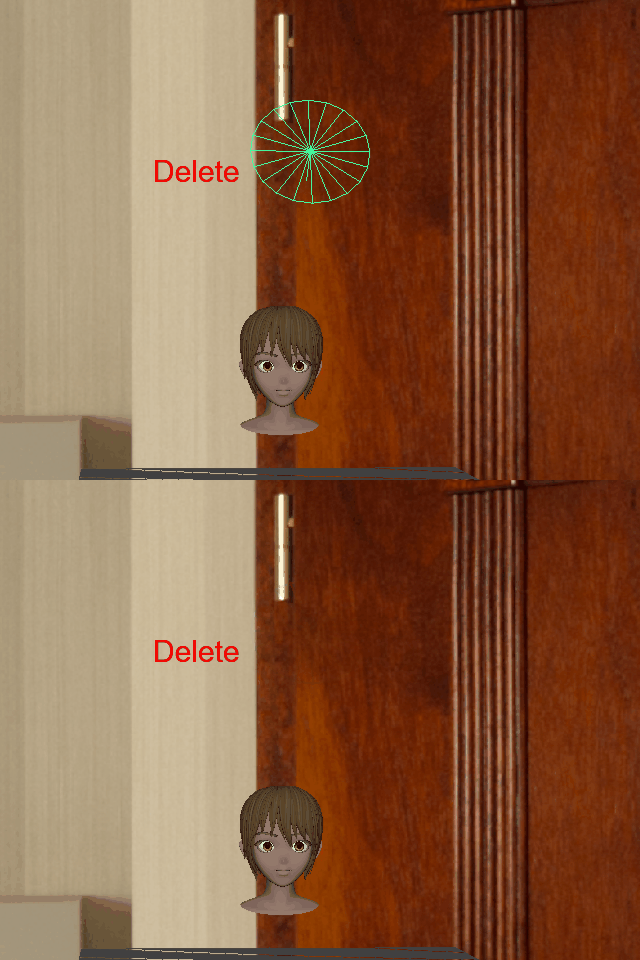
Delete the area light.
エリアライトを削除します。
10.
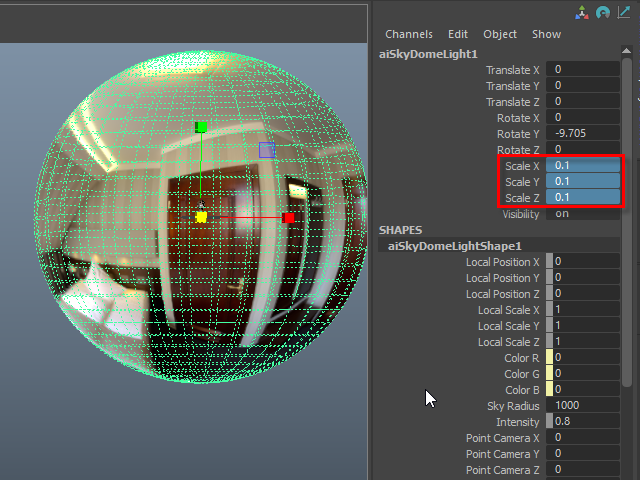
Scale down the Skydome Light.
Skydome Light のスケールを小さくします。
11.
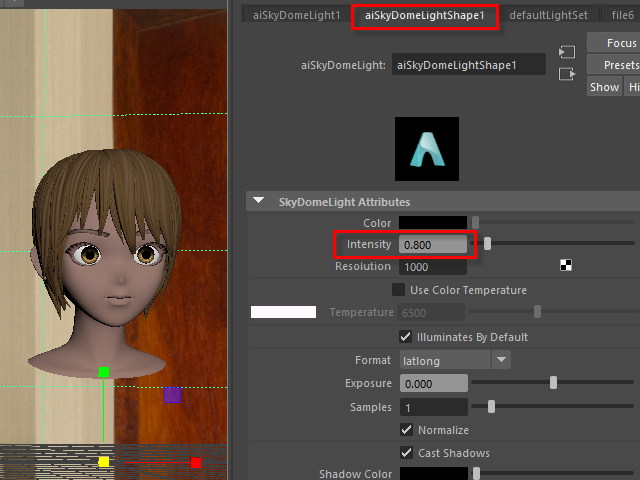
Increase Intensity.
Intensity を上げます。
12.
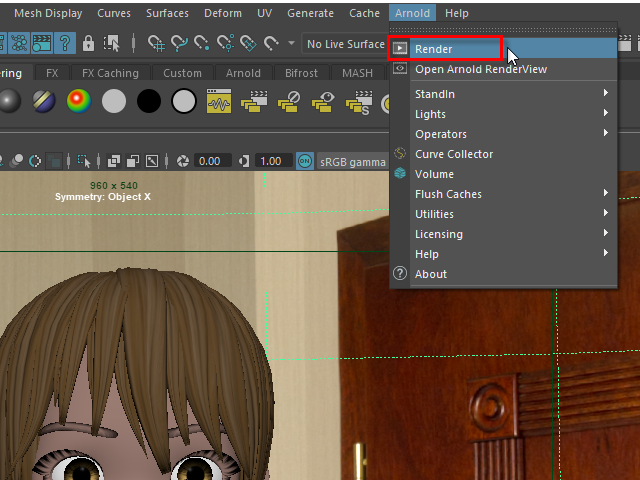
Start rendering.
レンダリングを開始します。
13.
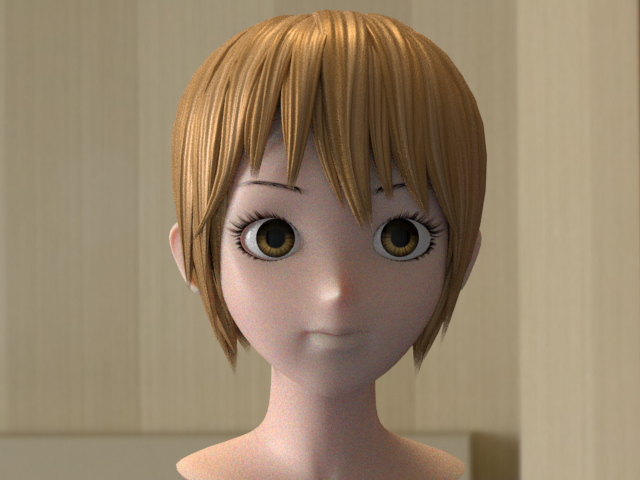
The light source is coming from the HDR image.
ライトは HDR イメージから放出されています。
14.
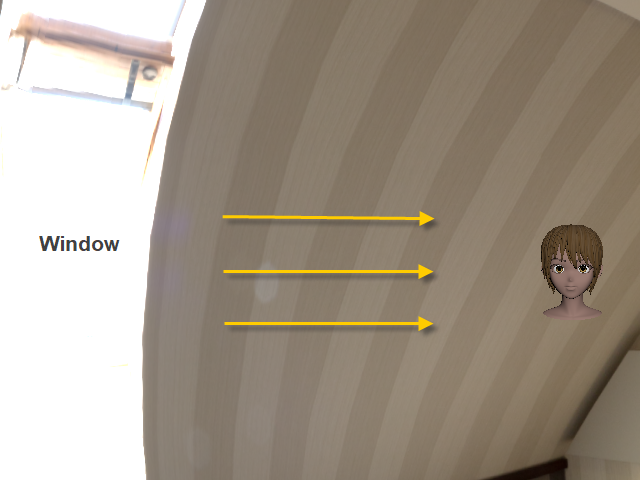
The light from the window is hitting the side of the face. Check the image 13.
Window からの光が顔の横を照らしている状態です。上の13. の画像を参考
15.
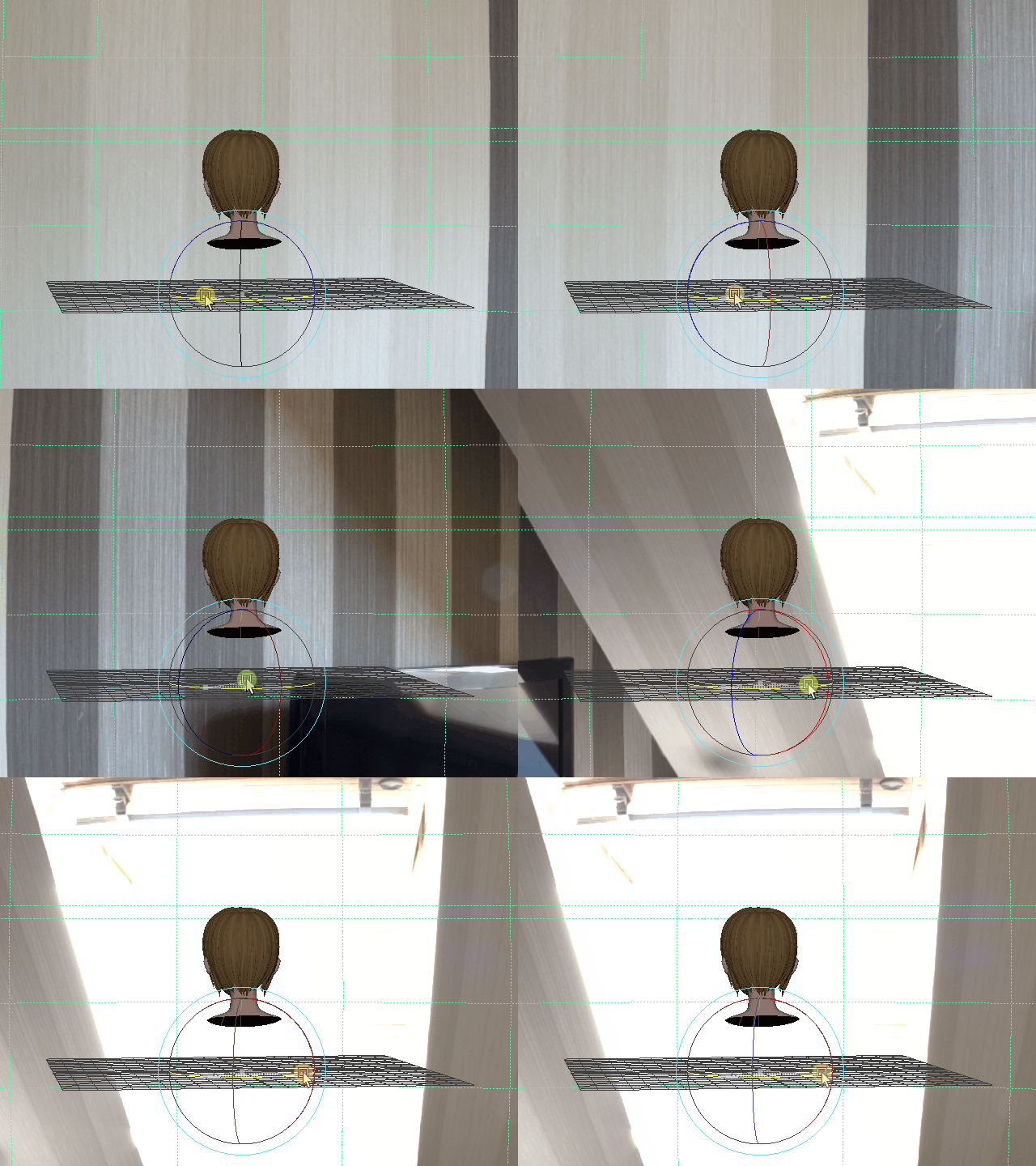
Rotate the Skydome Light and place the window in front of the face.
Skydome Light を回転させ窓を顔の正面に配置します。
15b.
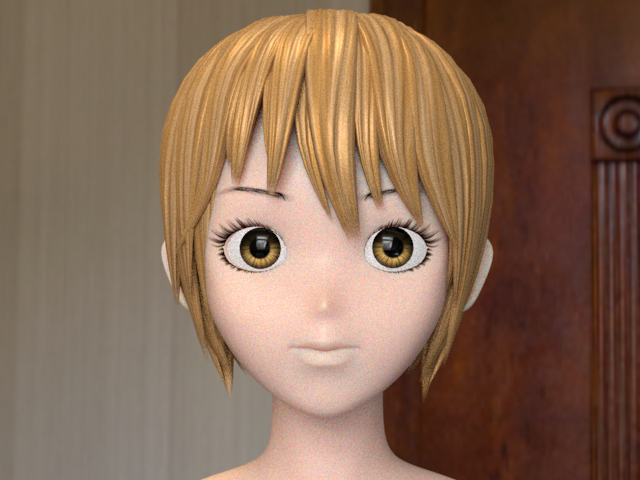
Render again. It will be like this.
もう一度レンダリングするとこのようになります。
16.
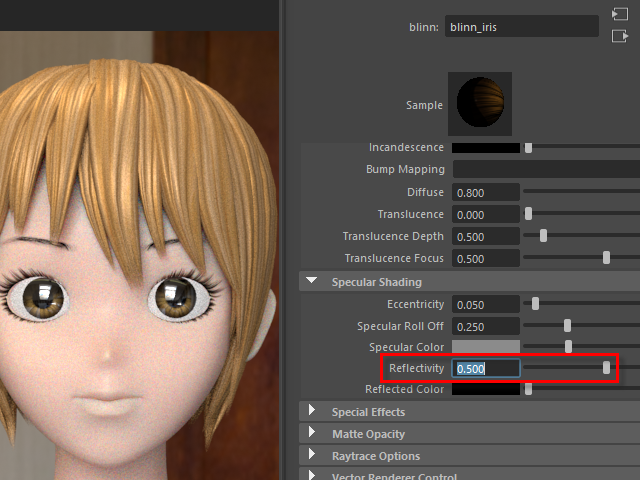
Increase Reflectivity and check the reflection of the eye.
Reflectivity を上げ目の映り込みをチェックします。
17.
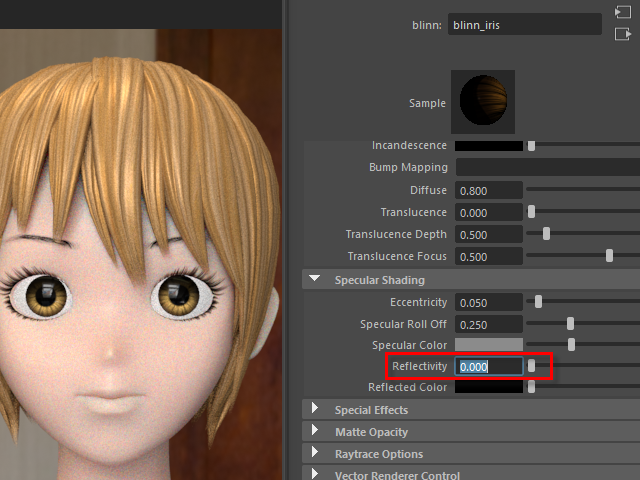
Adjust and find good number of Reflectivity.
程よい Reflectivity の設定に調節します。
18.
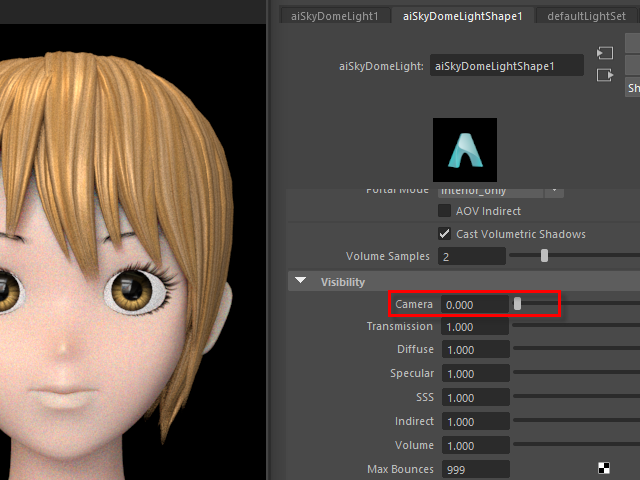
To turn off the back ground, set Camera Visibility to 0.
バックグラウンドを非表示にするには、Camera を0 に設定します。
19.
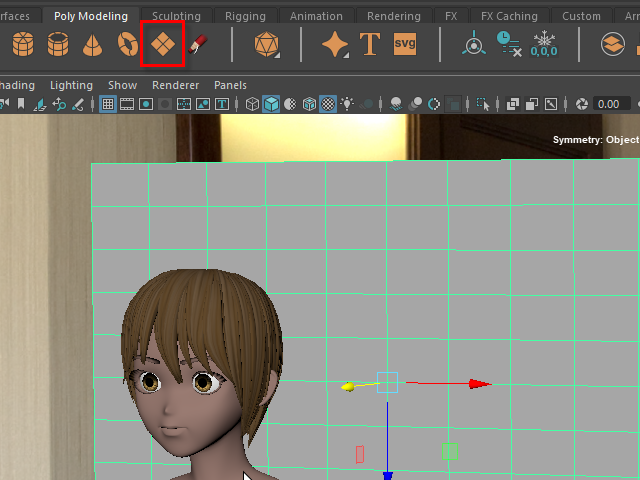
Make a plane to hide the background.
壁を作成しバックグラウンドを隠す方法もあります。
20.
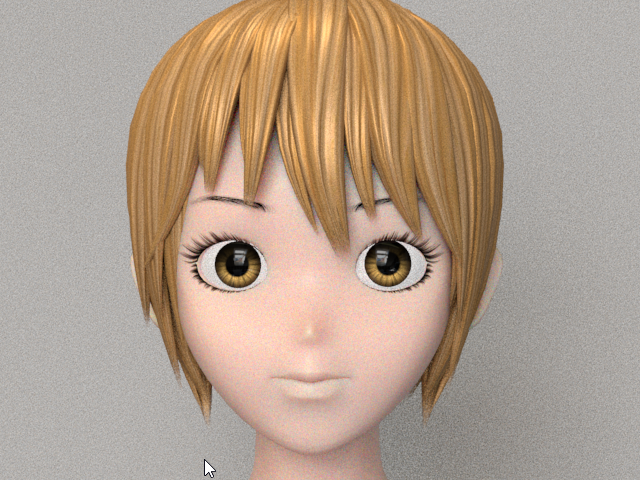
Render again. It will be like this.
レンダリングするとこのようになります。
21.
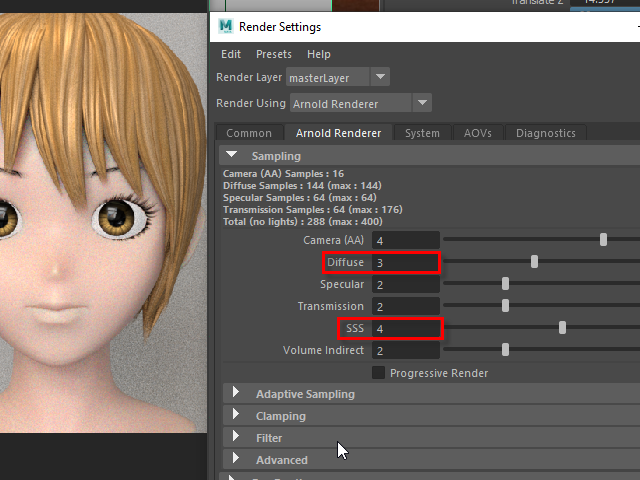
To increase the quality, increase sampling.
For the face skin quality, increase SSS.
レンダリング画像の質を上げるには、Sampling の数値を上げます。
SSS で顔のスキンシェイダーの質を上げます。
22.
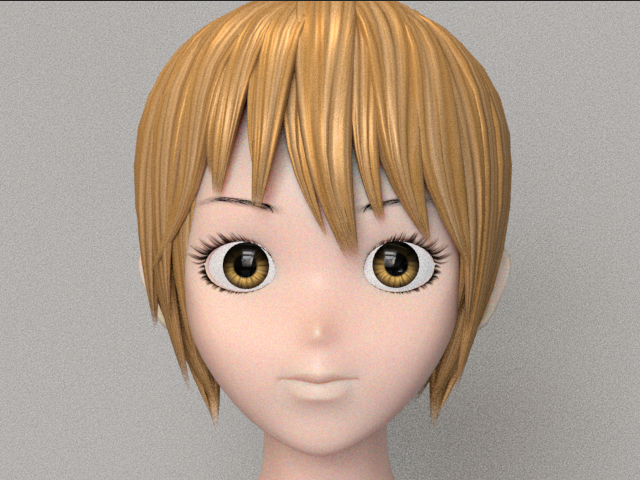
Compare to image 20.
20. の画像と比較してみます。
23.
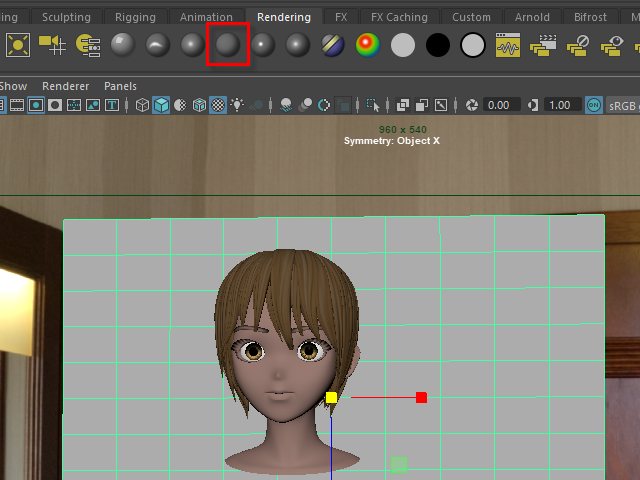
I am going to apply ramp texture on the back plane.
First, apply a new lambert.
後ろの壁にRamp テクスチャーを張り付けてみます。
まず Lambert をアサインします。
24.
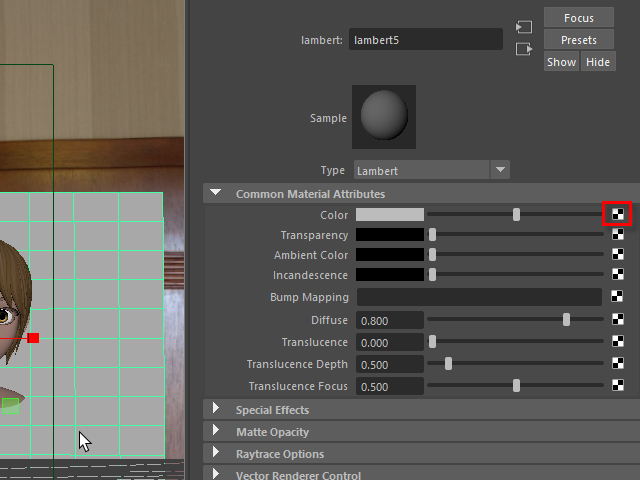
Apply Ramp texture.
Ramp テクスチャーを張り付けます。
25.
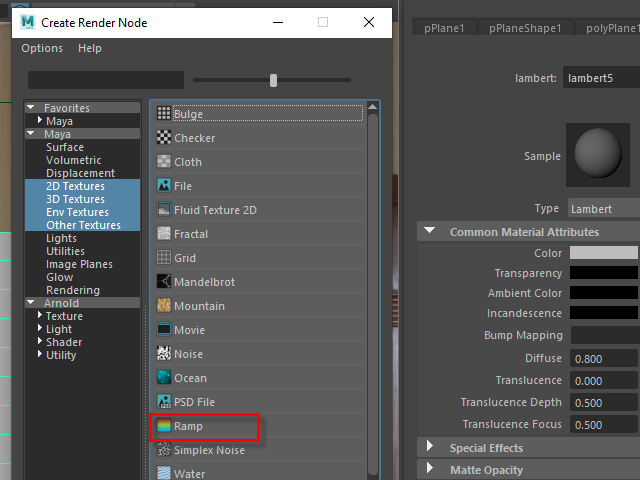
Apply Ramp texture.
Ramp テクスチャーを張り付けます。
26.

Adjust the color.
色を調節します。
27.
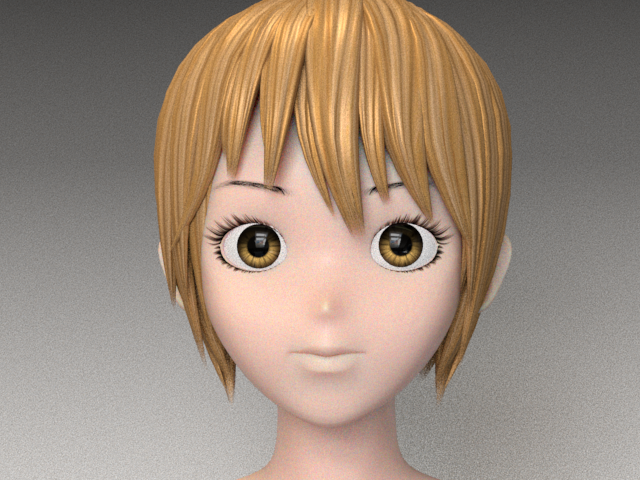
It’s going to be like this.
このようになります。