5 移動、回転、スケール (Transformation)
動 画を見る

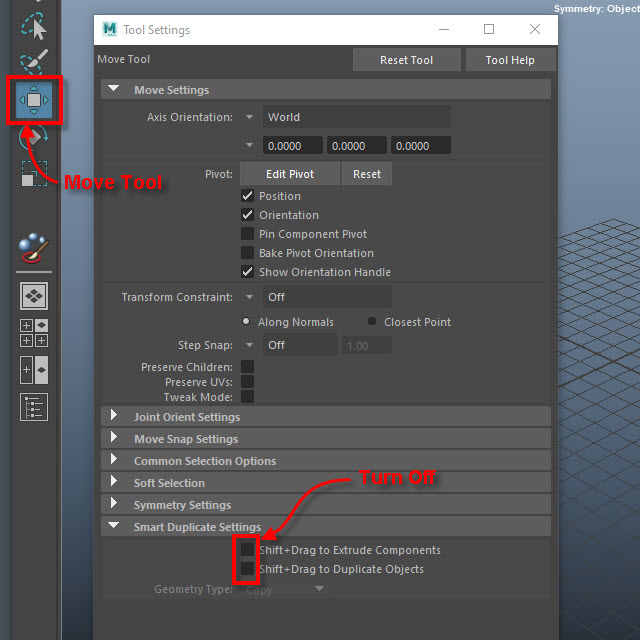
まず最初に Move Tool の設定を変えます。
左側の Move Tool のアイコンをダブルクリックし、Tool Setting をオープンします。
次に、Smart Duplicate Settings のオプションを解除します。
このオプションは便利ですが、初心者には使いにくので解除したほうがいいです。
Shift キーを押した祭に間違って面が複製される場合があります。
Before start moving an object, I need to change some setup.
1. Double click Move tool and open Tool Setting.
2. Click Smart Duplicate Settings to open.
3. Turn off the option.
This Smart Duplicate is handy to extrude faces but easy to make mistake for biginners.
It's better to turn off.
1.
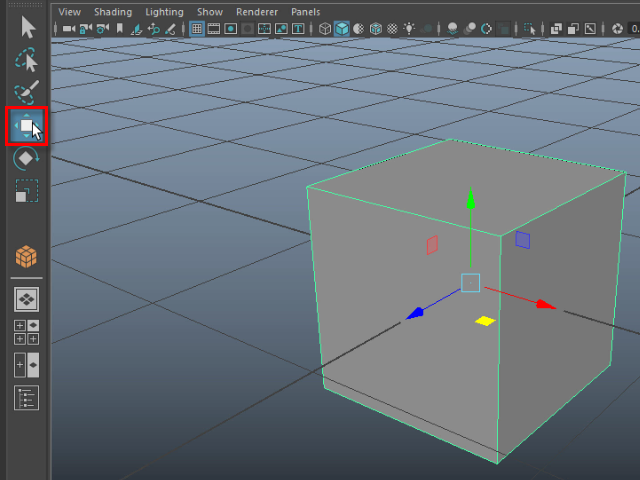
物体を移動 してみます。まず最初にオブジェクト をクリッ クします。
ワイヤーフ レームが緑色になります。 これはアクティブの状態です。
このアク ティブの状態で物体を移動す ことができます。
左側のTool Box から Move Tool (移動ツール)をクリックすると、
オブジェクトの中心に矢印(マニピュレータ)が表示されます。
Let's try moving an object.
First, click on the object.
The wireframe will turn green—this indicates that the object is active.
In this active state, you can move the object.
Click the Move Tool from the Tool Box on the left side.
An arrow (manipulator) will appear at the center of the object.
2.
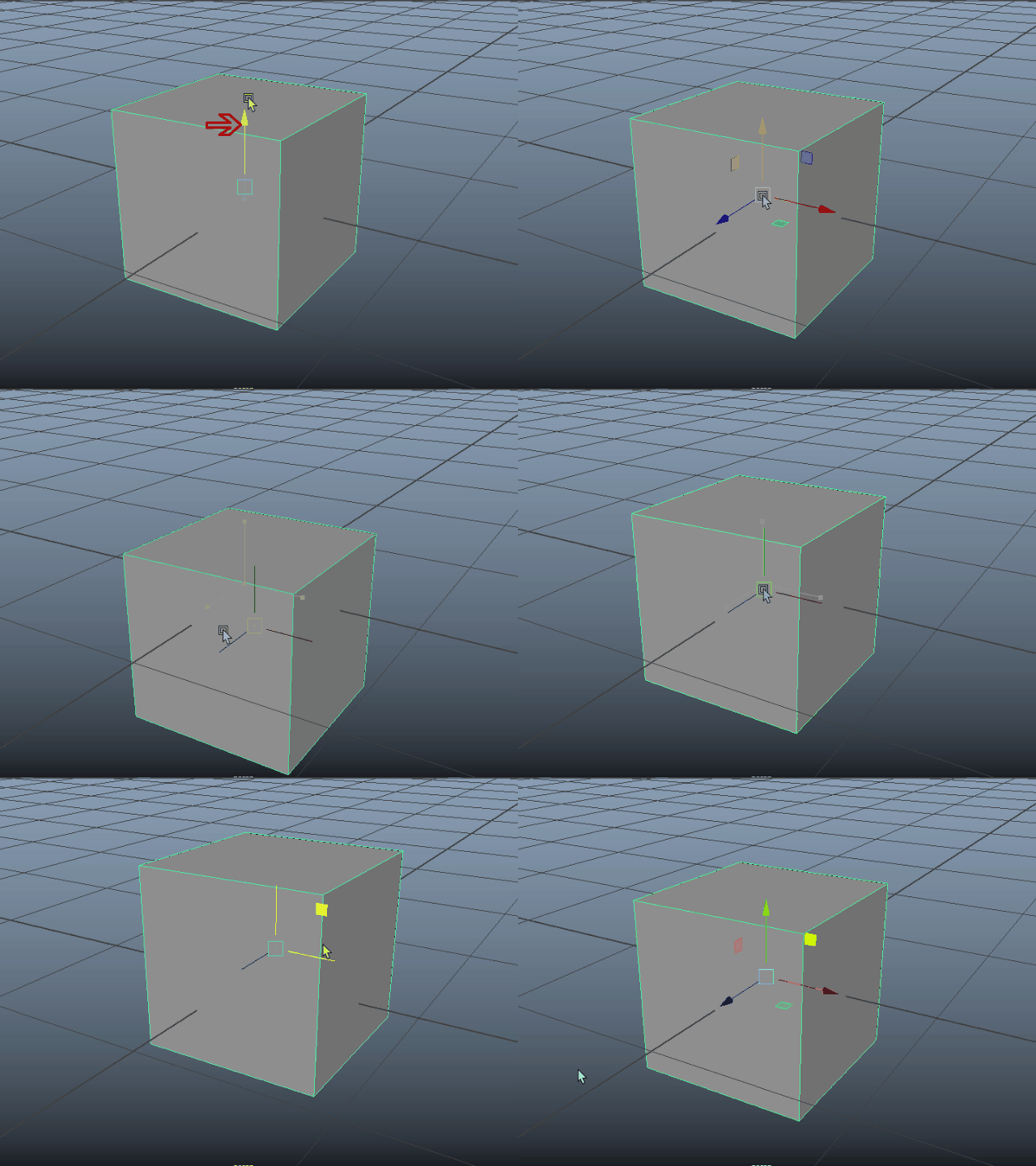
マニピュレータをドラッグし、移動します。
中心をドラッグすると、上下左右に移動できます。
平面のマニピュレータをドラッグすると平面上に移動します。
Drag the manipulator to move the object.
Dragging the center allows you to move it freely in all directions.
Dragging the planar manipulator moves the object along the plane.
3.
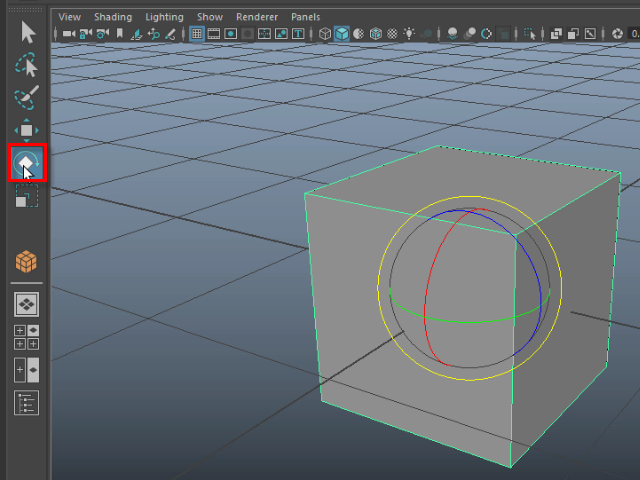
Rotate Tool (回転ツール)
4.
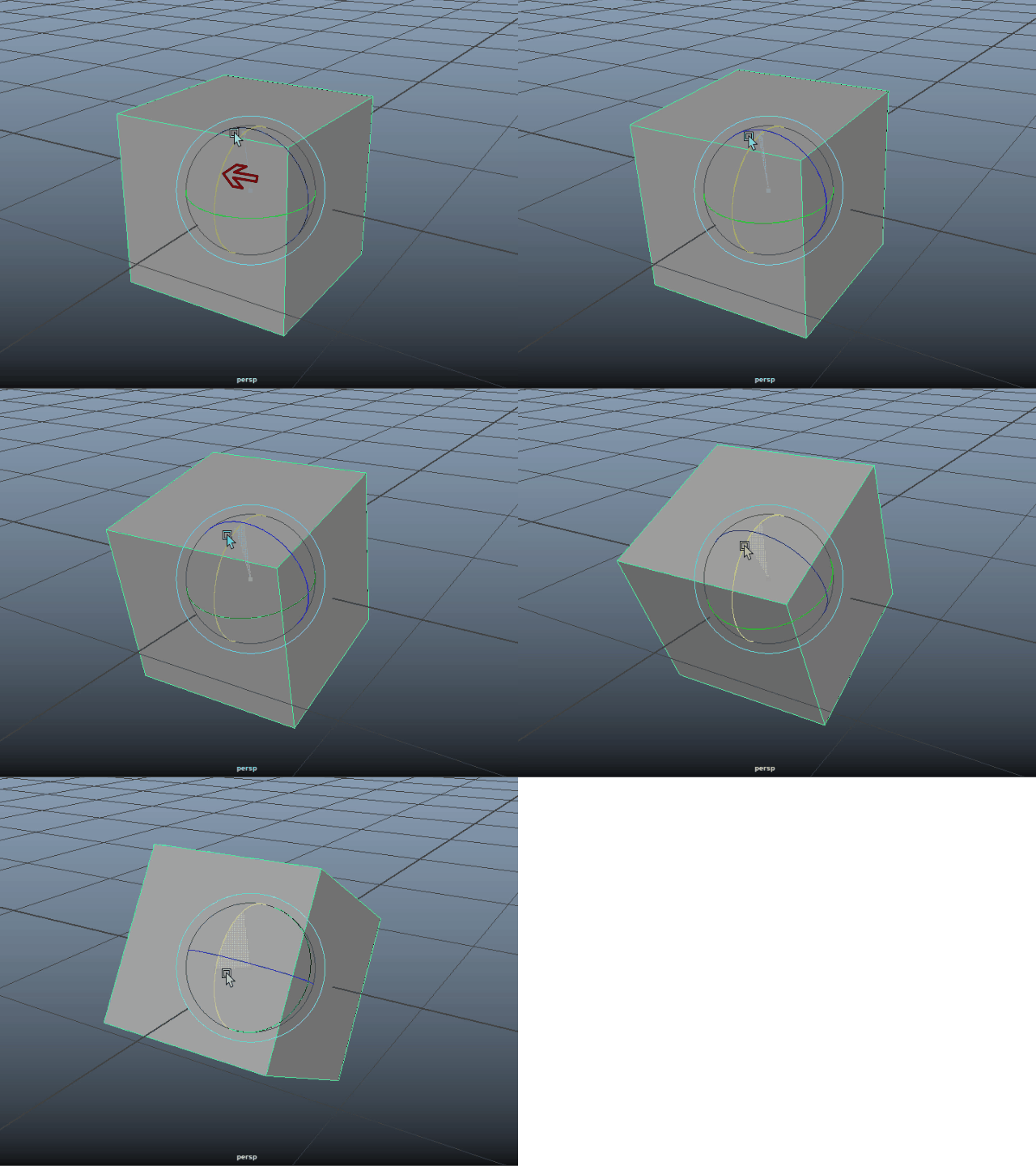
円をドラッグし、回転させます。
Drag the circle to rotate.
5.
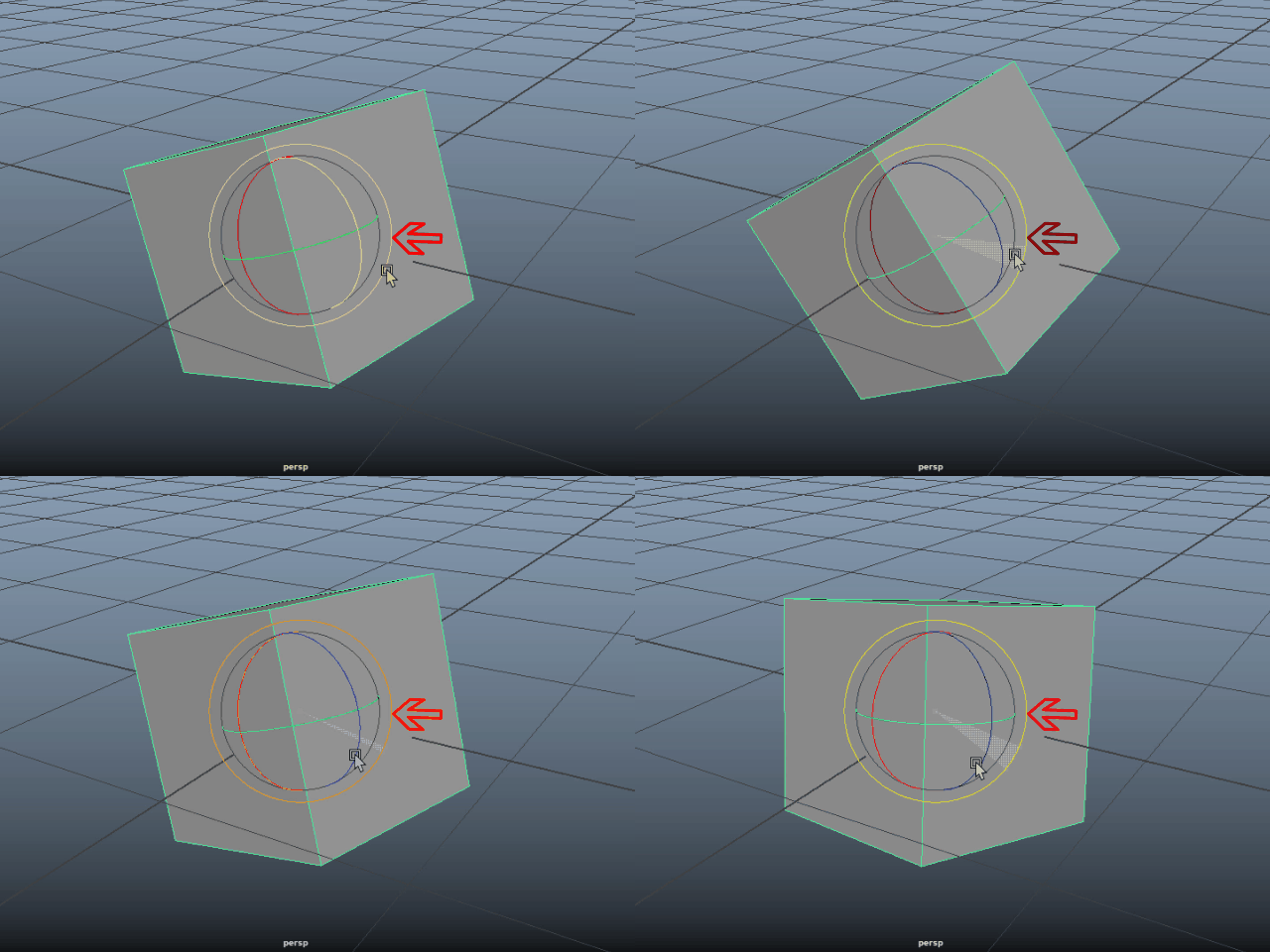
一番外側の円はカメラに対して直角に回転します。
The outermost circle allows rotation perpendicular to the camera view.
6.
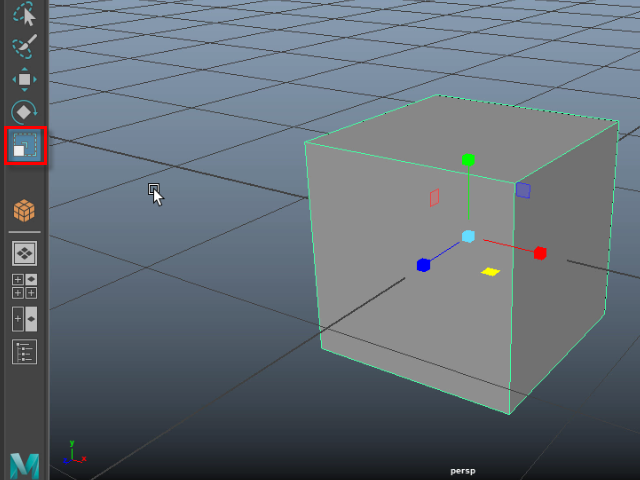
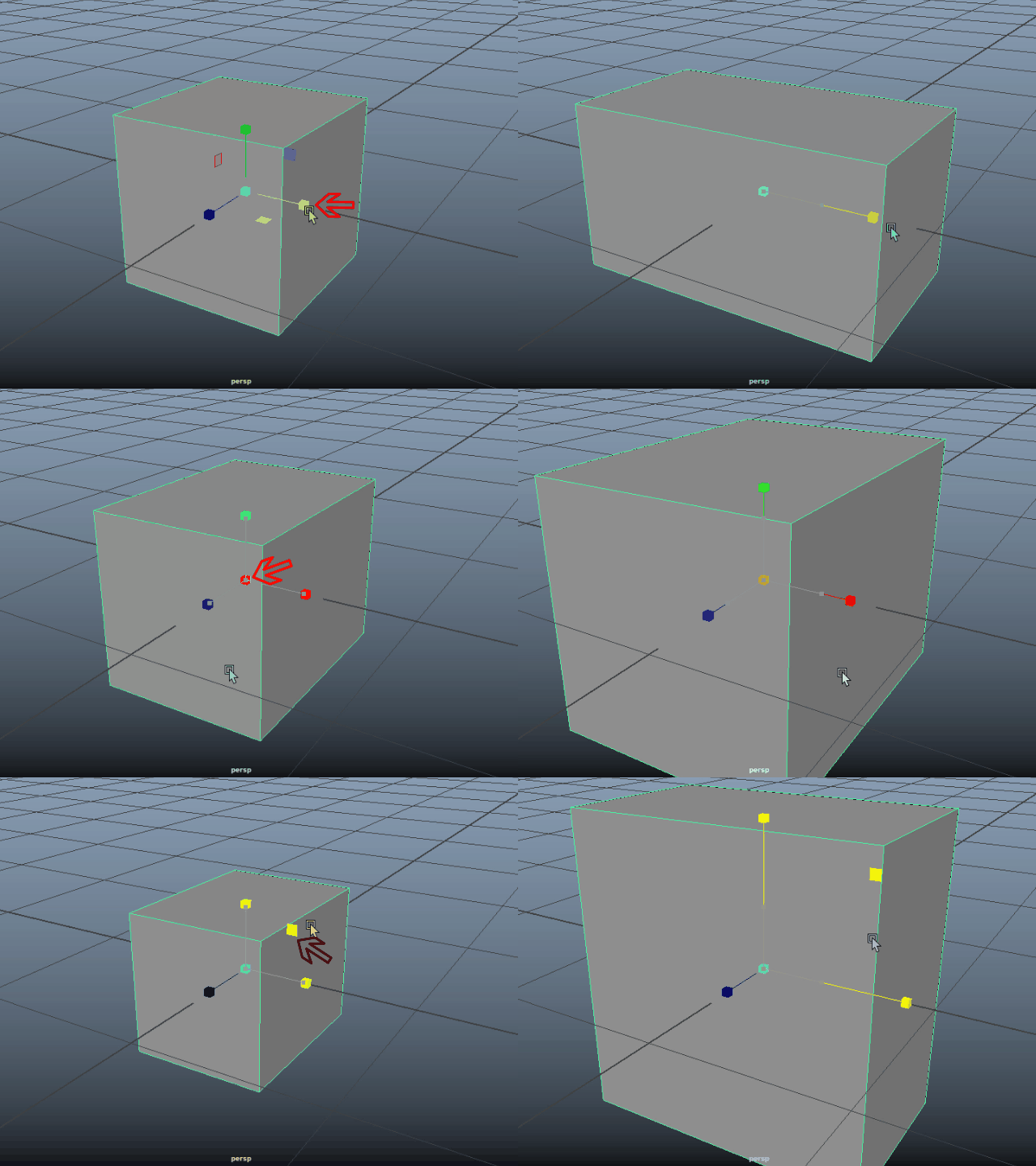
Scale Tool (スケールツール)
7.
8.
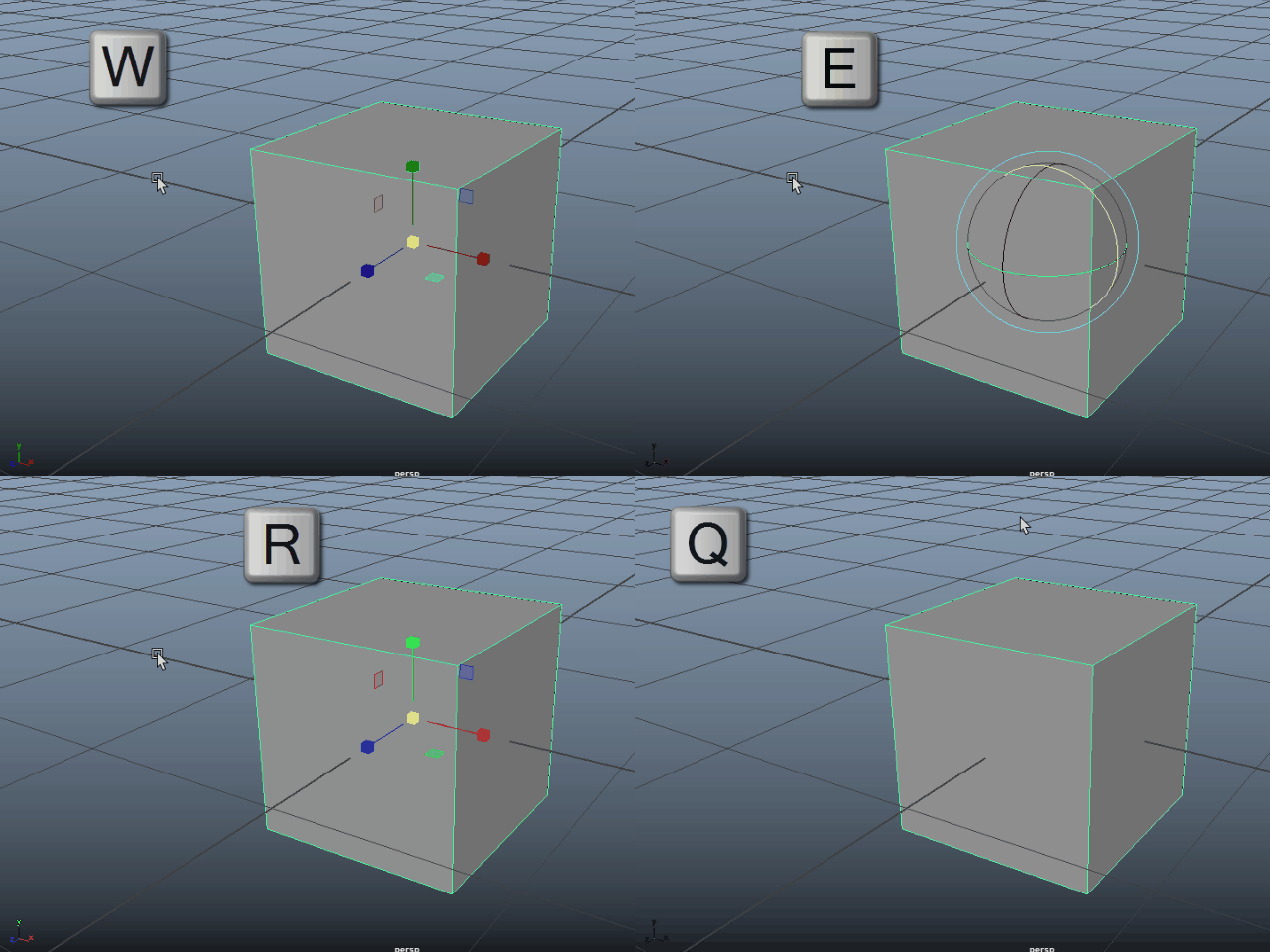
キーボードのショートカットです。
These are the short cut.
9.
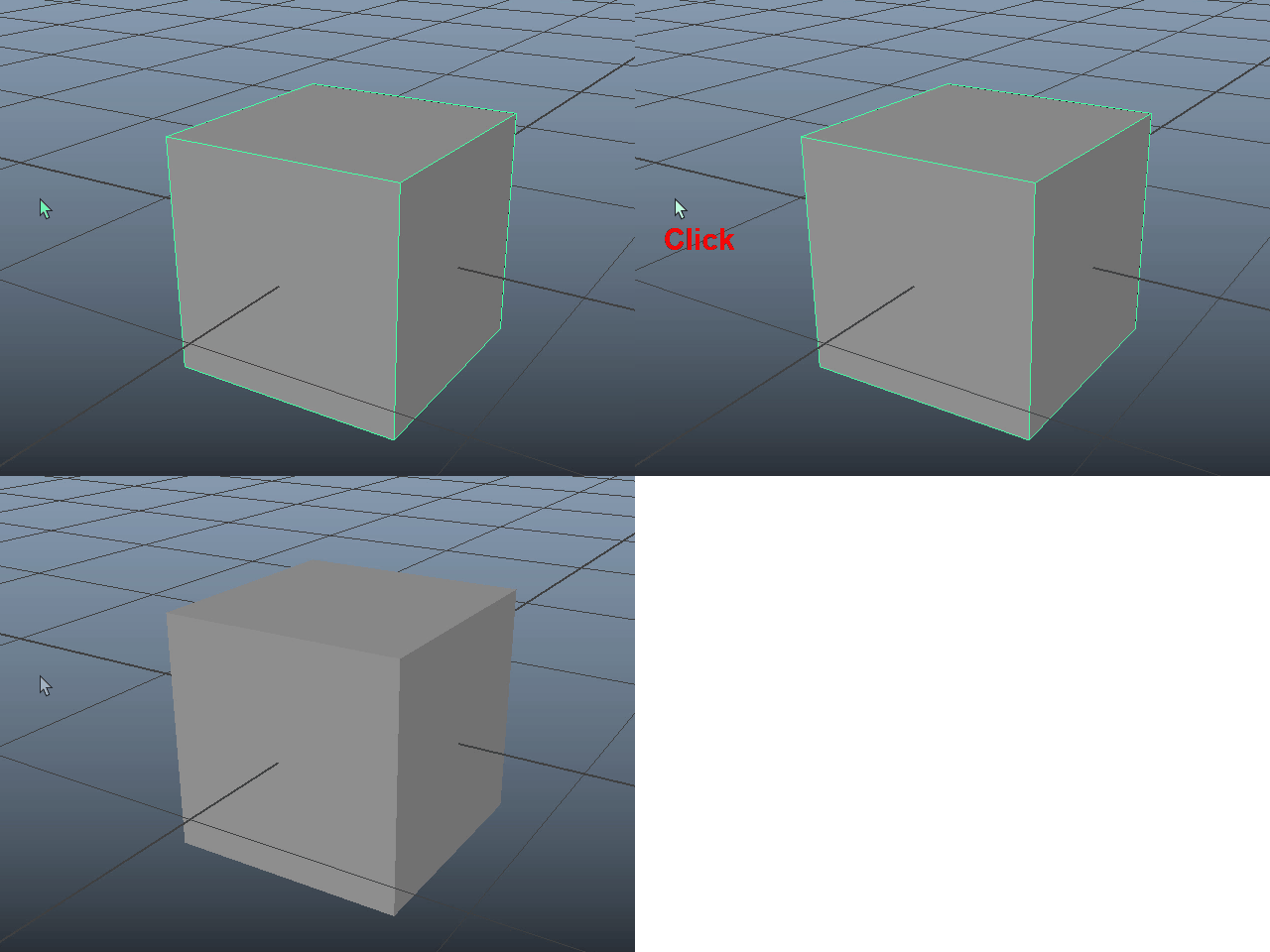
ワイヤーフレームがグリーンの場合はアクティブの状態で す。
オブジェクトの外側をクリックしてアクティブの状態を解除します。
When the wireframe is green, the object is in an active state.
Click outside the object to deactivate it.
-5-