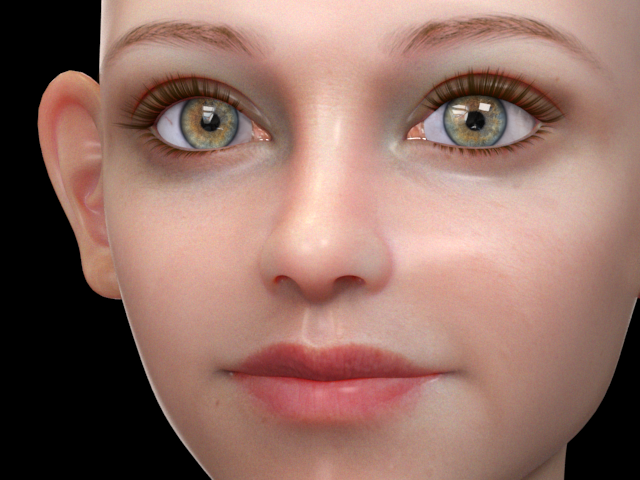
7. Subsurface Scattering
サブサーフェス スキャッタリング
1.
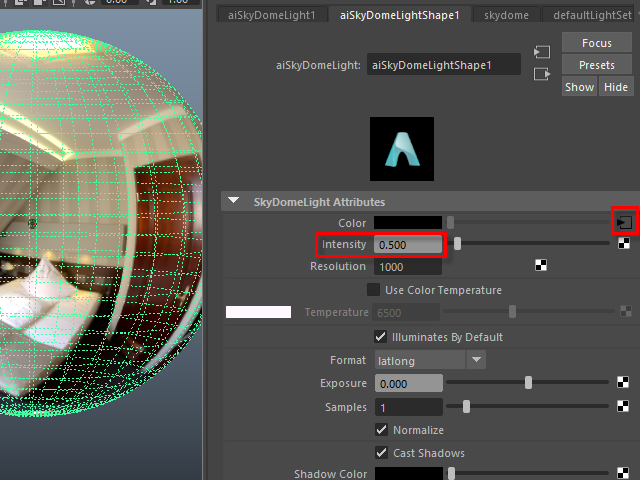
Create a SkyDomeLight and apply a HDR image.
Set Intensity to 0.5
SkyDomeLight を作成し、HDR 画像を張り付けます。
Intensity を 0.5 に設定します。
●Download HDR image
2.
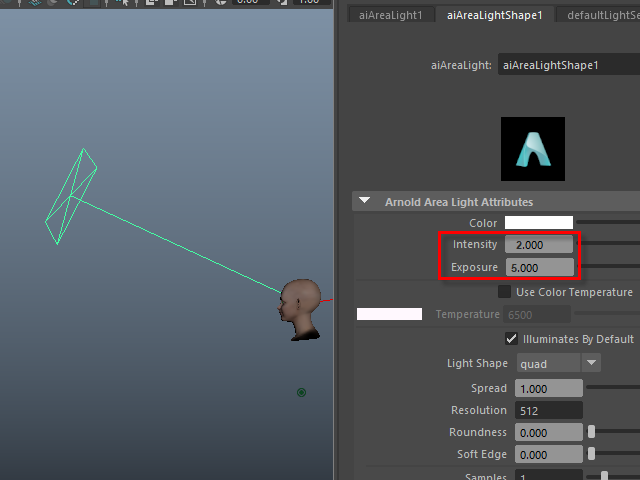
Create an Area Light in front of the head like this.
Scale Z to aim to the head.
Intensity: 2
Exposure: 5
このように正面より少し斜めからArea Light を作成します。
Z 方向にスケールを大きくし、顔に焦点を合わせます。
Intensity: 2
Exposure: 5
3.
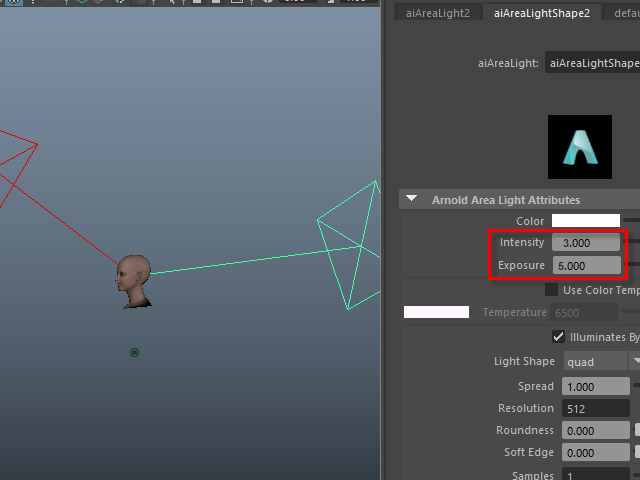
Create an Area Light on the back of the head like this.
Scale Z to aim to the head.
Intensity: 3
Exposure: 5
このように後ろからArea Light を作成します。
Z 方向にスケールを大きくし、顔に焦点を合わせます。 3
Intensity: 3
Exposure: 5
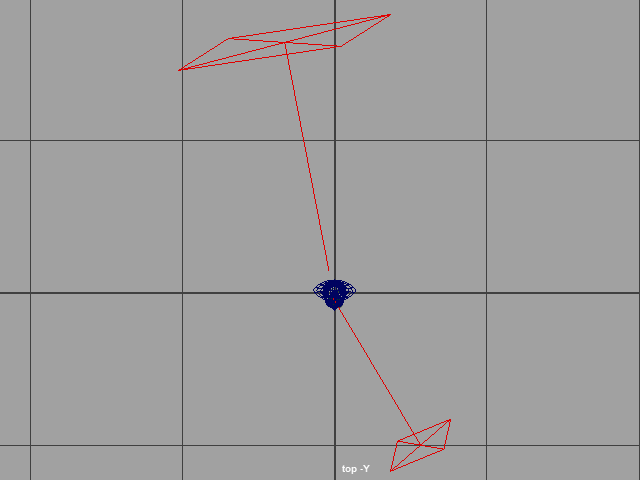
This is how I set up the light from the top view.
上から見たライトの位置です。
4.
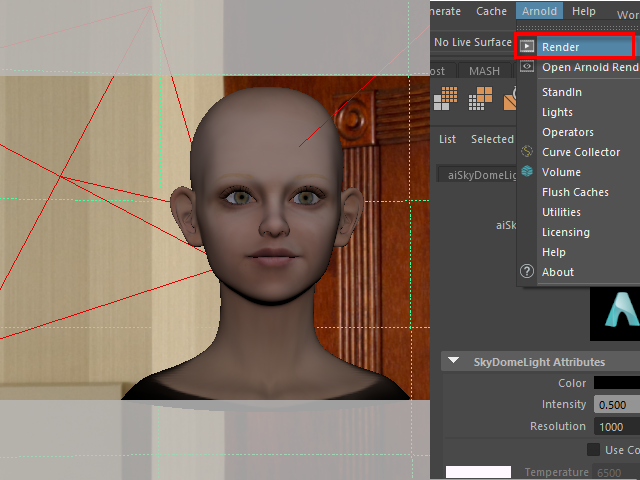
Test rendering.
レンダリングします。
5.
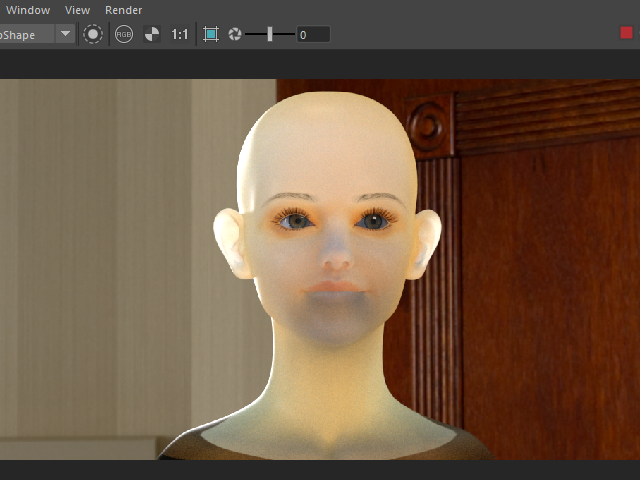
If you see too much translucence, the model might be too small.
このように透き通った状態になる場合は、モデルが小さい可能性があります。
6.
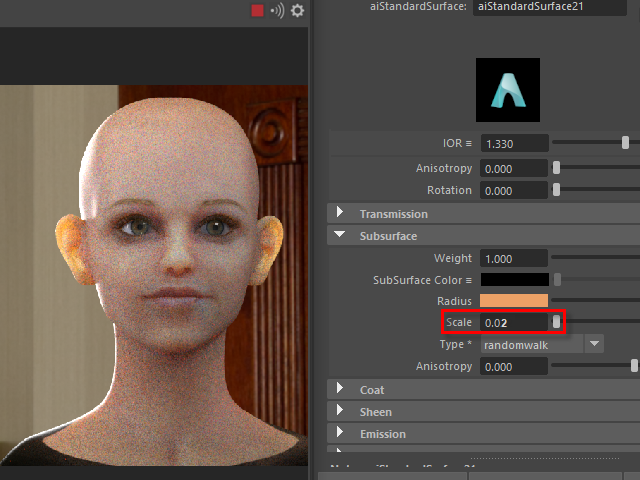
Lower Scale value instead of shrinking down the model.
If Scale value is too small, subsurface doesn't work well.
Find the right number.
モデルのスケールを小さくする代わりに、Scale のバリューを下げます。
下げすぎるとサブサーフェスの効果が出なくなります。
ちょうど程よい値をみつけます。
7.

Radius is the inside color of the skin.
Apply brown and check the color of the ear.
Radius は皮膚の中の色になります。
Radius を茶色に変え、耳の色を確認します。
8.
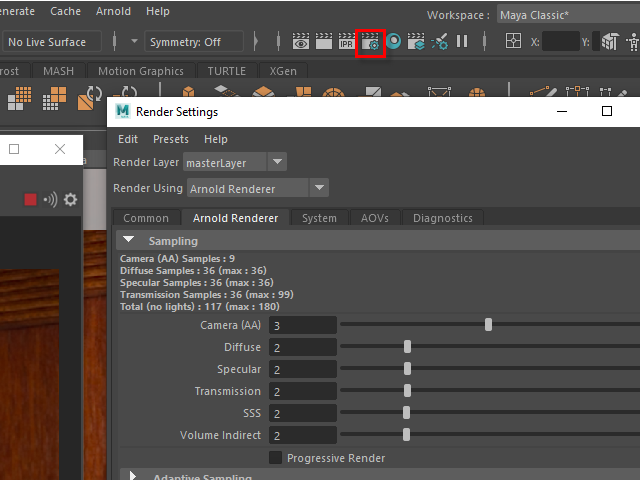
Open Render settings.
Render Settings をオープンします。
9.
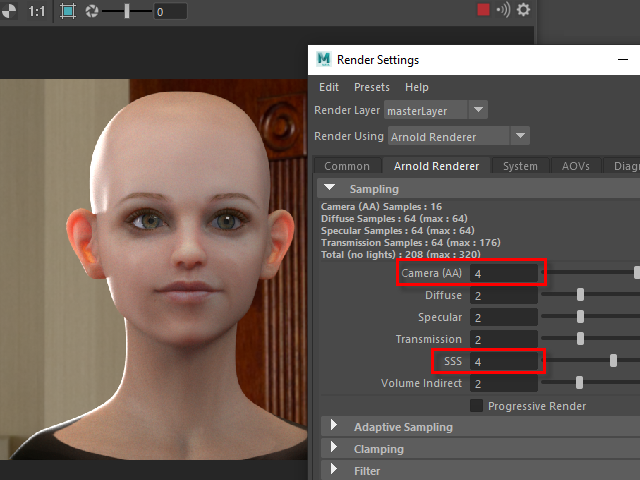
To increase the rendering quality, apply higher number of sampling.
SSS increases the quality of subsurface scattering.
Camera(AA) increases all below the Camera(AA).
レンダリングの画質を上げるには、サンプリングの数値を上げます。
SSS はサブサーフェスの質を上げます。
Camera(AA) の数値を上げると、その下のすべての質が上がります。
10.
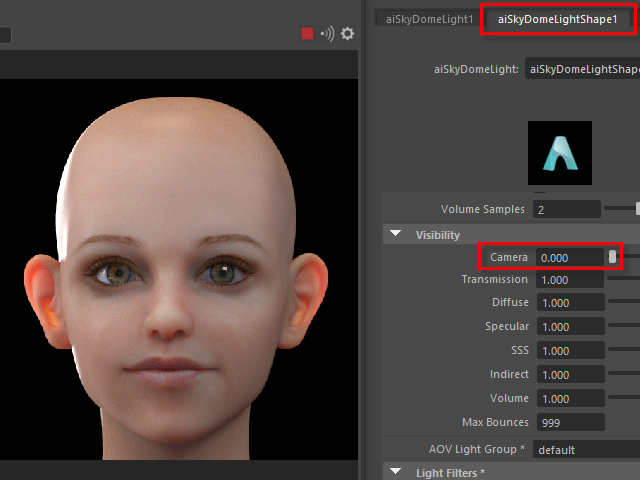
To make the background invisible,
select the aiSkyDOmeLight and apply 0 on Camera.
バックグラウンドの画像を消すには、
aiSkyDOmeLight をセレクトし、Camera の数値を0 にします。
11.
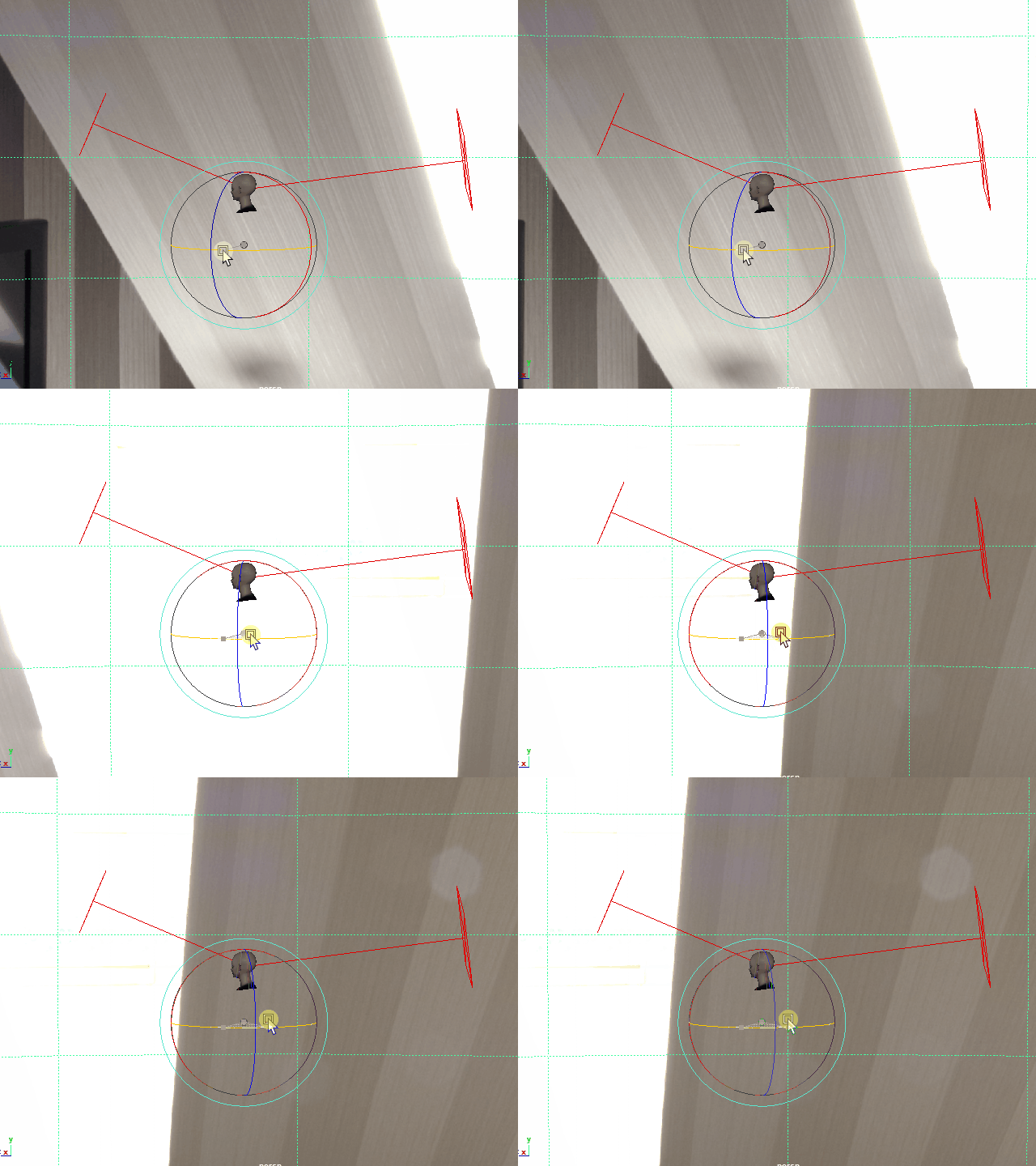
You can rotate the aiSkyDomeLight.
Find the good lighting position.
aiSkyDomeLight を回転させ、
良いライ手イングの位置に設定します。
12.